4. Excel Macro-Enabled Workbook Structure
Your Excel workbook should contain the following sheets:
| Sheet Name | Purpose |
|---|---|
| Control | Run Forecast, View Models, Insert Charts, and Settings Buttons |
| Input | Time series data |
| Constraints | Equality or Inequality constraints |
4a. VBA Button Wiring
Create a VBA module in Excel (Alt + F11 > Insert > Module) and paste the following and save (see Figure 9)
Sub RunMacroFrameForecast()

RunPython "import mf_excel. excel_client. addin as a; a. run_forecast_button()"
End Sub

Sub ViewMacroFrameModels()

RunPython "import mf_excel. excel_client. addin as a; a. view_models_button()"
End Sub

Sub InsertMacroFrameCharts ()

RunPython "import mf_excel. excel_client. addin as a; a. insert_charts_button()"
End Sub

Sub OpenMacroFrameSettings()

RunPython "import mf_excel. excel_client. addin as a; a. settings_button()"
End Sub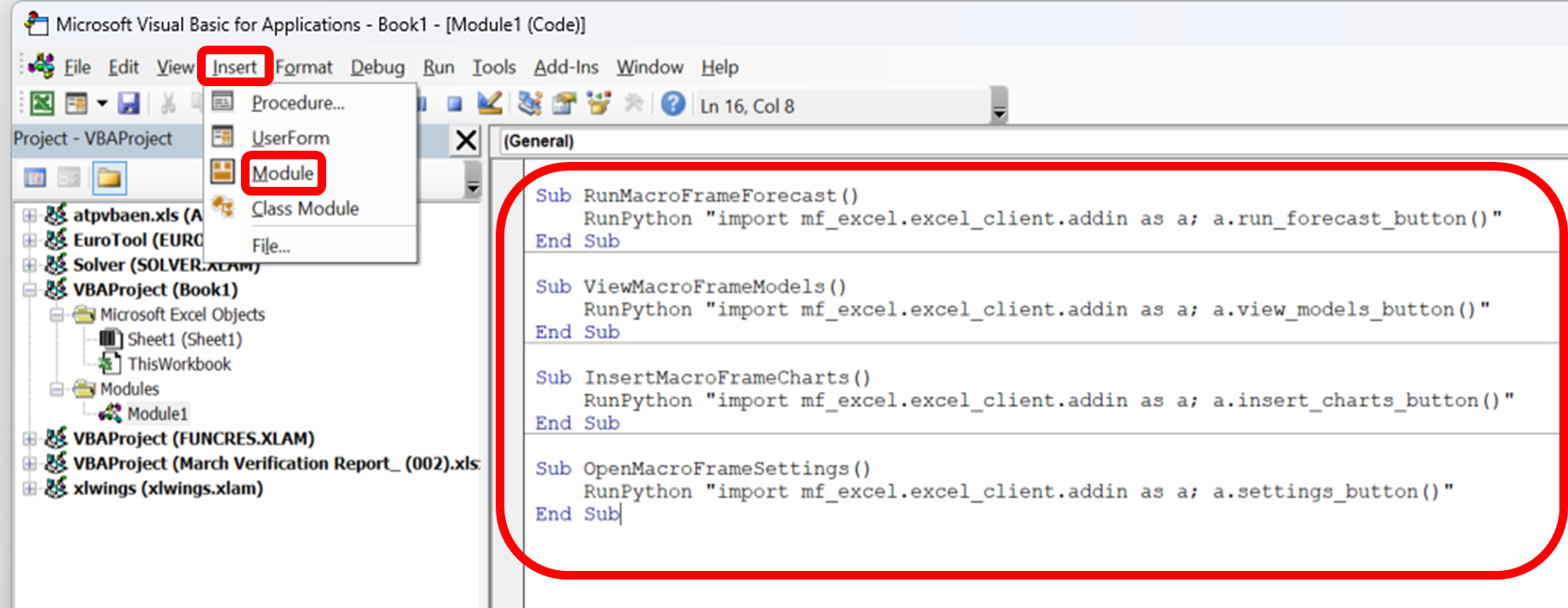
4b. Assigning Buttons in Excel Control Sheet
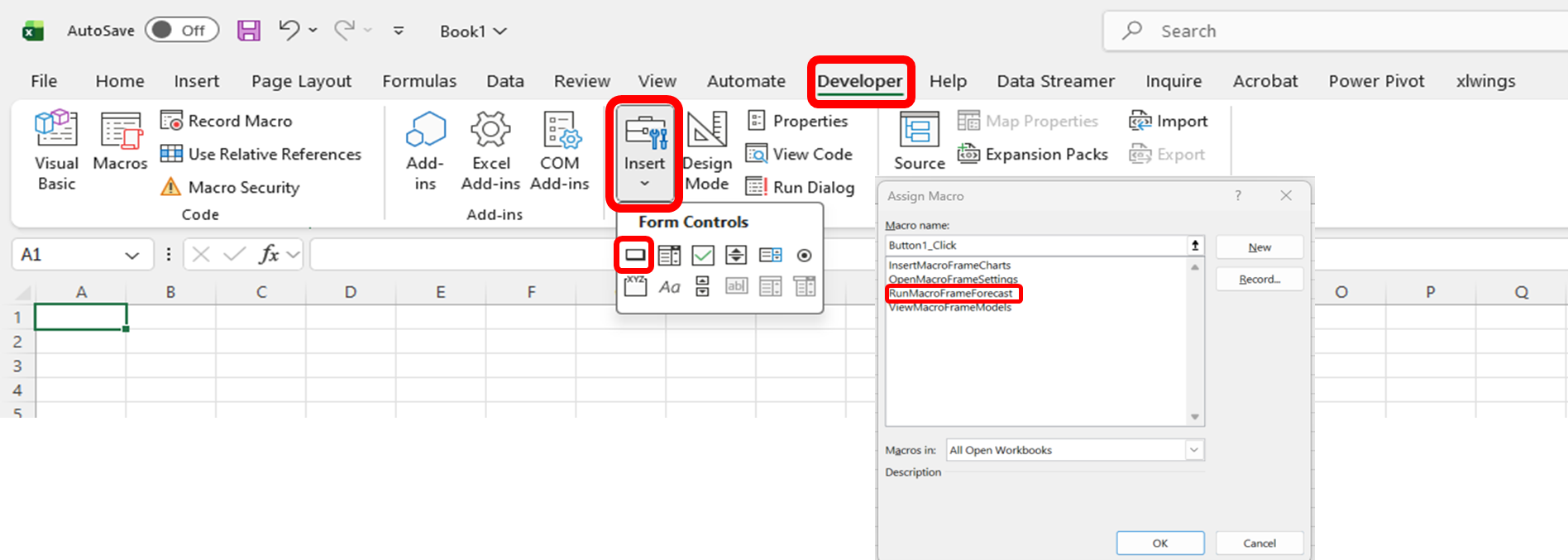
- Navigate to the Developer tab > Insert > Form Controls > Button (see Figure 10)
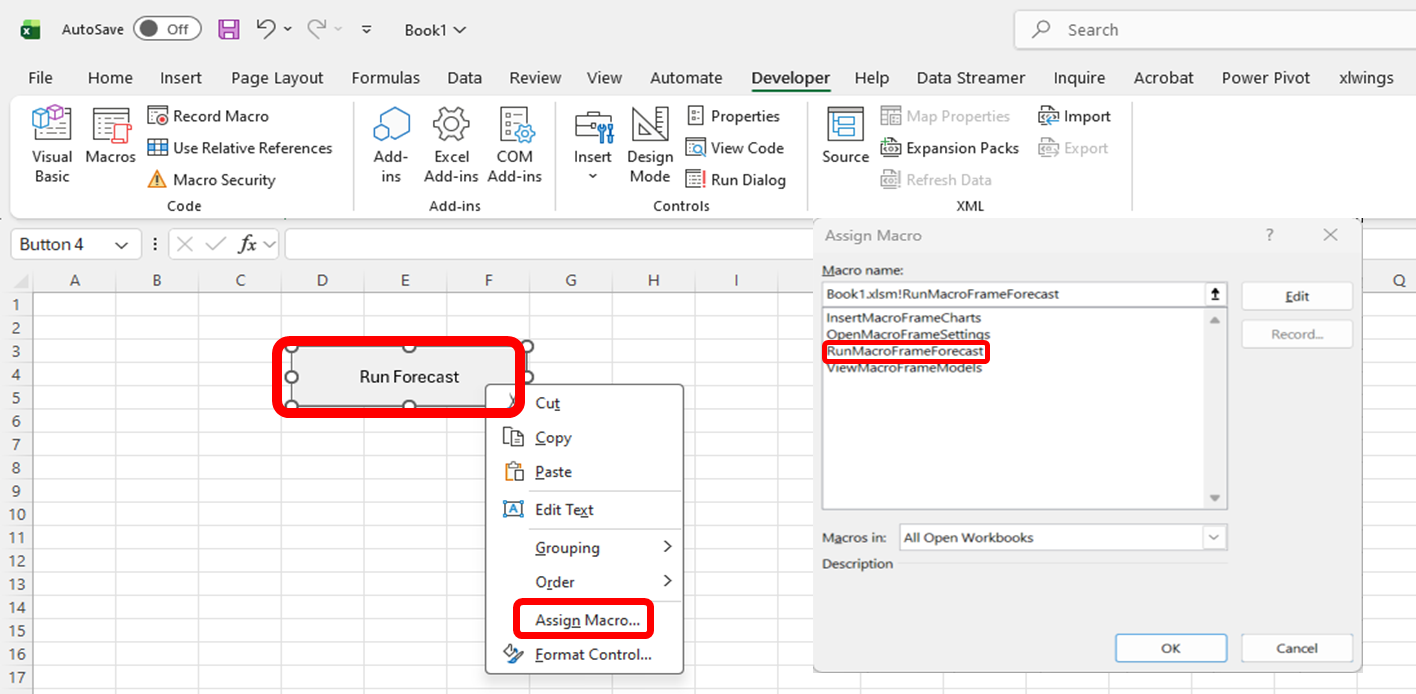
- Draw a button and assign appropriate names (Run Forecast, View Models, Insert Charts, Settings) (see Figure 11).
- Right-click each button > Assign Macro and choose the corresponding macro (see Figure 11).