Execute the following command on the Bash Terminal
python -m pip install xlwings
3b. Load the xlwings Add-in
Open a new Excel file.
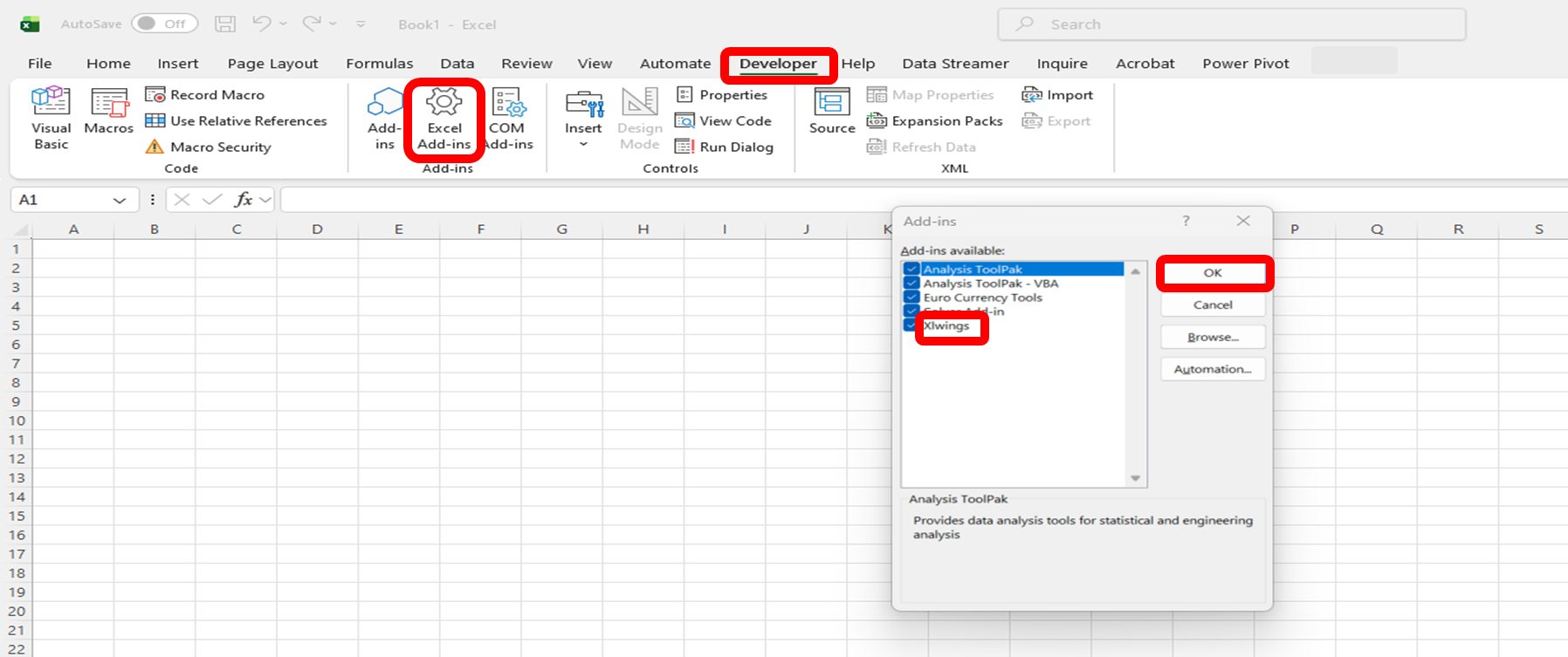
Go to Developer > Excel Add-ins > check xlwings > OK (see Figure 6).
Figure 6
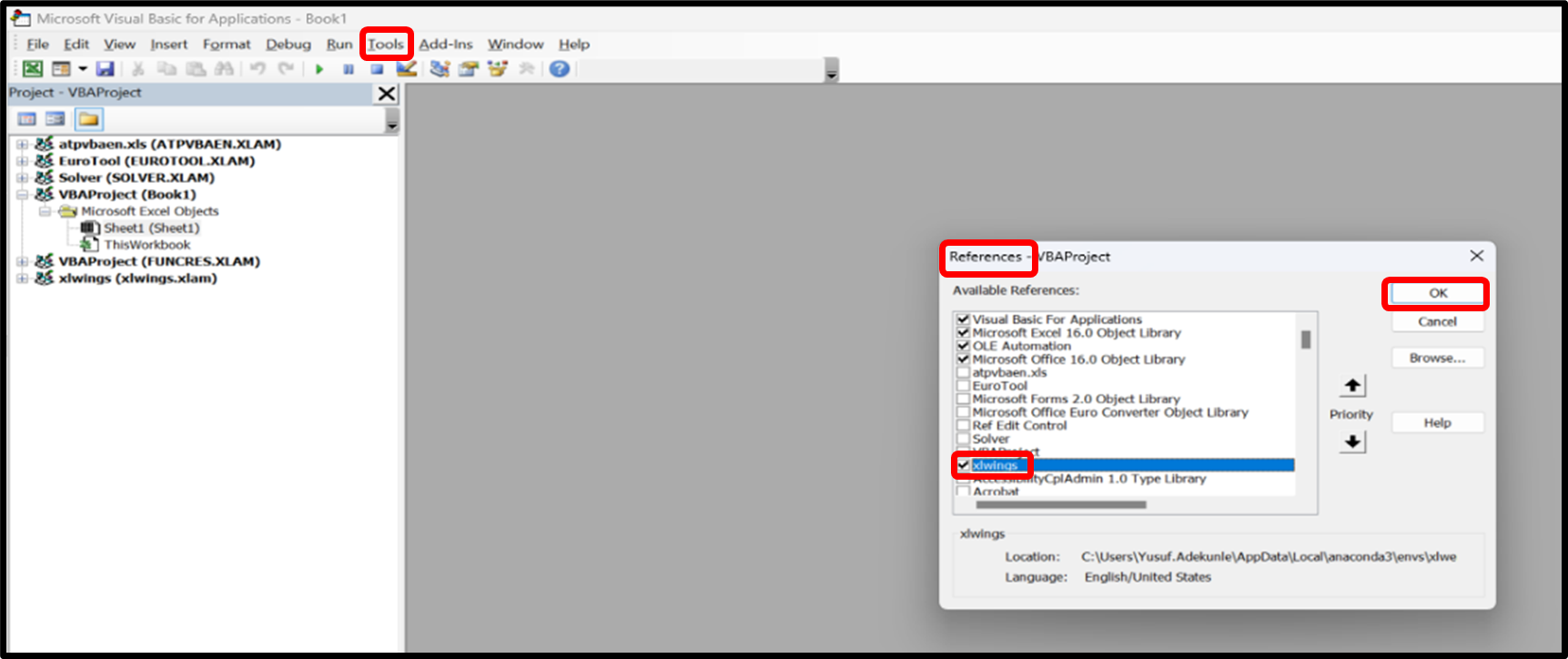
Press Alt + F11 > Tools > References > check xlwings > OK (see Figure 7).
Click File > Save As > Excel Macro-Enabled Workbook.
Figure 7
3c. Point the Python Interpreter and Excel integration code Paths to the xlwings
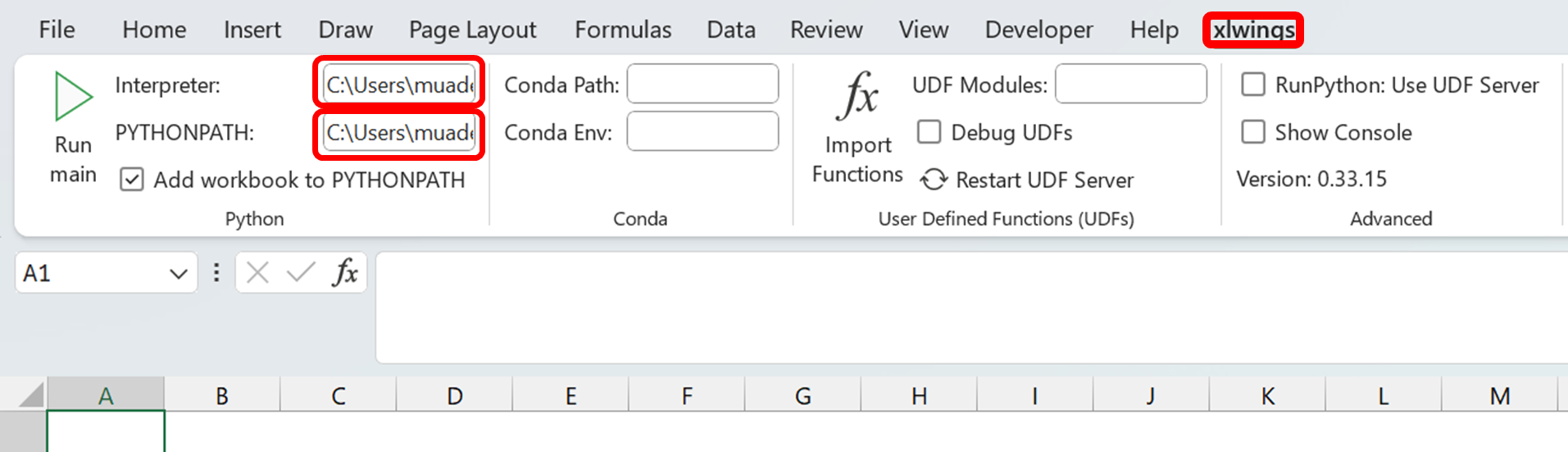
Open the xlwings menu in Excel.
Set the Interpreter to your .venv Python path (e.g. C:\Users\you\Desktop\mf_excel_package\.venv\Scripts\python.exe).
Set PYTHONPATH to the path where the mf-excel package folder is located (e.g. C:\Users\you\Desktop\mf_excel_package\.venv\Lib\site-packages\mf_excel) (see Figure 8).